Arrangement Coach
v1.1.1An Ableton Live Extension that helps electronic music producers transform loops into full arrangements. If you've ever gotten stuck with an 8-bar loop that sounds great but you can't figure out how to build a complete track around it — this is for you.
 Jeff B.
Arrangement Coach
An Ableton Live Extension that helps electronic music producers transform loops into full arrangements. If you've ever gotten stuck with an 8-bar loop that sounds great but you can't figure out how to build a complete track around it — this is for you.
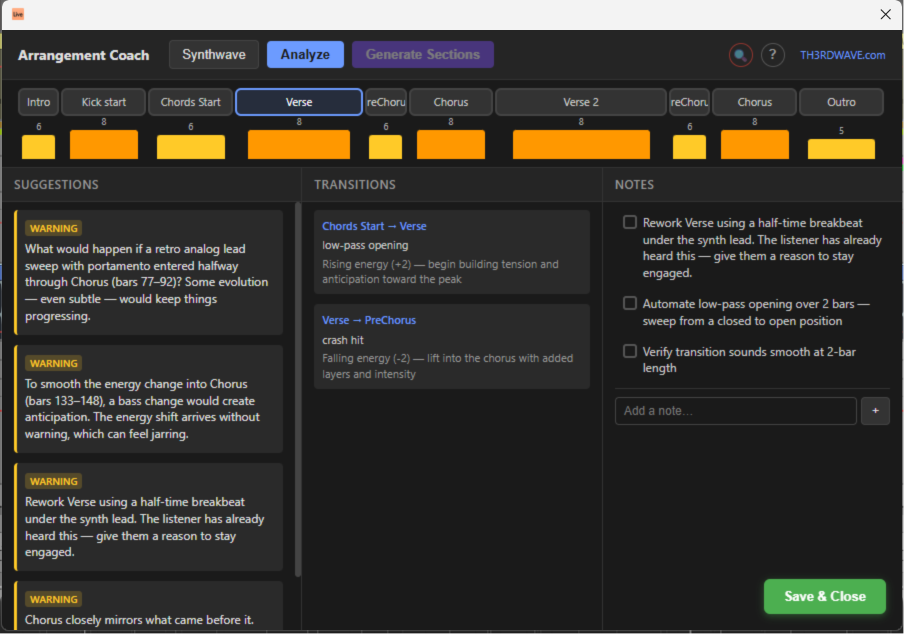
Arrangement Coach analyzes your Live Set in real time, scores each section's energy level, detects structural problems, recommends transitions, and gives you genre-aware suggestions tailored to your style.
Quick Install
- Download the arrangement-coach.ablx file
- In Ableton Live, go to Options → Settings → Extensions
- Drag and drop the
.ablxfile into the Extensions settings - The extension appears in the context menu when you right-click in Arrangement View
How to Use
1. Set Up Section Markers
Arrangement Coach uses Locators (Ableton's arrangement markers) to define sections. Place locators at the start of each section in your arrangement — Intro, Verse, Build, Drop, Breakdown, Outro, etc.
If you don't have locators yet, click Generate Sections in the toolbar to auto-generate genre-appropriate section markers based on either a random structural template (for empty timelines) or content analysis of your existing clips.
2. Select Your Genre
Click the genre button in the toolbar to open the genre picker. With 15+ genre families and 120+ subgenres, you can drill down to your exact style. The selected genre adjusts:
- How energy scores are weighted
- What counts as an "issue" (a 64-bar intro is fine for Trance, but too long for Trap)
- Transition recommendations
- Checklist items and suggestions
3. Load Your .als File
For full analysis including automation detection (filter sweeps, volume curves, send levels), you need to point the extension at your saved .als file.
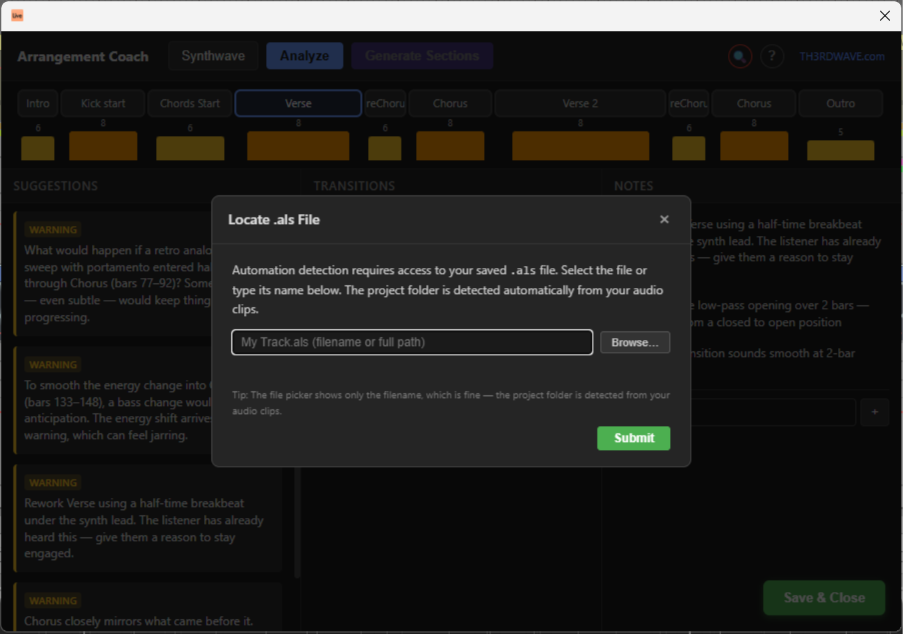
- Save your Live Set (Ctrl+S / Cmd+S) so automation is written to the file
- Click the 🔍 button in the toolbar (it pulses red when not loaded)
- Click Browse… and select your
.alsfile - Click Submit — automation data is parsed and the analysis runs
You only need to do this once per session. If you add or change automation later, save and re-analyze.
4. Analyze
Click the Analyze button to run the full analysis pipeline. Always save your Live Set first — the extension reads the file on disk, so unsaved changes won't be reflected.
5. Work Through Suggestions
Click section pills across the top to navigate between sections. The three panels (Suggestions, Transitions, Notes) update to show context for the active section. Use the auto-generated checklist as a to-do list while arranging.
How the Analysis Works
The analysis pipeline runs in several stages, each feeding into the next:
Stage 1: Data Extraction
The extension reads your Live Set via the Ableton Extensions SDK:
- Locators → section boundaries (name, position, duration)
- Tracks → classified by name and device chain into frequency buckets (sub, bass, low-mid, mid, high-mid, high, full)
- MIDI clips → note density, velocity, polyphony, pitch range, articulation patterns
- Audio clips → spectral analysis (FFT), RMS energy, transient detection, role classification
- Automation → parsed from the
.alsfile (filter, volume, send, pan envelopes) - Devices → instrument/effect chain analysis for track role classification
Stage 2: Energy Scoring
Each section receives an energy score from 1–10 based on a weighted combination of factors:
| Factor | What it measures |
|---|---|
| Active track count | How many tracks have content in this section |
| MIDI density | Notes per bar across all MIDI tracks |
| Track presence ratio | Fraction of total tracks active |
| Automation ratio | Fraction of tracks with automation envelopes |
| Frequency coverage | How many of the 7 frequency buckets are occupied |
| Velocity intensity | Average MIDI velocity (loudness/intensity) |
| Polyphony score | Average simultaneous notes per beat |
| Pitch range | Melodic spread across active tracks |
| Audio energy | Normalized RMS from audio track spectral analysis |
| Synth energy | Contribution from lead/pad/chord/arp synth analysis |
| Drum energy | Normalized drum element richness (active kick, snare, hi-hat, cymbal, percussion elements) |
Genre-adjusted weights — Different genres emphasize different factors. Techno weights automation and frequency coverage heavily; Hip-Hop weights velocity and MIDI density; Ambient prioritizes pitch range and frequency coverage over track count. Genres with prominent percussion (Techno, D&B, Footwork) also weight drum element richness — sections with a full kit (kick, snare, hi-hat, cymbal, percussion) score higher than sections with just a kick.
Relative scoring — Scores are normalized across your arrangement. The section with the most activity gets a higher score, the least gets a lower score. This means scores represent contrast within your track, not an absolute standard.
Color coding:
- 🟢 Green (1–3): Low energy — intros, breakdowns, ambient passages
- 🟡 Yellow (4–6): Medium energy — verses, builds, transitions
- 🟠 Orange (7–8): High energy — choruses, drops, peak sections
- 🔴 Red (9–10): Maximum energy — climactic moments
Stage 3: Issue Detection
The extension scans for structural problems:
| Issue type | What it detects |
|---|---|
| Flat energy | Consecutive sections with very similar energy (arrangement feels static) |
| Missing transition | Large energy jump between sections without transition elements (risers, fills, sweeps) |
| Repetition | Consecutive sections with high structural similarity (same tracks, same density, same automation state) |
| Abrupt change | Large energy jumps without genre-appropriate context (no buildup, breakdown, or drop boundary) |
| Frequency crowding | Too many tracks competing in the same frequency bucket |
| DJ compatibility | Intro/outro length, phrase alignment, and mix-zone suitability based on genre expectations |
| Synth repetition | Same synth patterns repeating across multiple sections without variation |
| Low synth density | Synth tracks with very sparse content in a section |
| Harmonic shift | Large harmonic interval jumps without transitional context |
| Duplicated roles | Multiple tracks serving the same instrument role in the same section |
Each issue has a severity level (info, warning, error) and thresholds adjust based on your selected genre.
Stage 4: Transition Recommendations
For each section boundary, the engine recommends transition techniques based on:
- Energy delta — how much the energy changes between sections
- Boundary type — whether it's entering a drop, leaving a breakdown, building up, etc.
- Genre conventions — what types of transitions are idiomatic for your style
- Spectral contrast — how different the audio content is across the boundary
Each recommendation includes:
- Specific techniques (e.g., "16-bar high-pass filter sweep", "2-bar drum fill with snare roll")
- A rationale explaining why this transition type suits the boundary
- A checklist of actionable steps to implement it
Stage 5: Content-Aware Suggestions
Deep analysis of MIDI and audio content generates targeted suggestions:
- Pattern fingerprinting — identifies repeated patterns and suggests where to introduce variation
- Fill/build detection — recognizes existing fills and avoids redundant suggestions
- Instrument role classification — understands which tracks are kicks, basses, leads, pads, etc.
- Percussion-specific — genre-aware drum suggestions (e.g., "add an open hi-hat pattern in the build")
- Synth variation — velocity automation, layering, pitch transposition, and articulation ideas
- Audio frequency balance — sub-bass presence, spectral density, and frequency distribution
- Automation opportunities — where filter sweeps, volume rides, or send automation would add movement
Stage 6: Reference Comparison (Optional)
Drop a reference track into your Live Set (name it starting with "REF" or "Reference") and the extension will:
- Detect it automatically
- Extract its section structure from clip boundaries
- Compare your arrangement's proportions against the reference
- Show delta indicators for section lengths and timing
Arrangement Score
The Arrangement Score (1–10) in the controls bar gives you an at-a-glance measure of how well your energy curve matches the ideal for your selected genre. It combines two components at 50/50 weighting:
- Shape similarity — Are your energy rises and falls happening at the right moments? (cosine similarity of delta vectors)
- Absolute proximity — Are your actual energy levels close to what the genre expects? (average deviation from template)
Score tiers:
- 🟢 8–10 Good — Your arrangement closely follows the genre's energy arc
- 🟡 5–7 Acceptable — Some deviation, but the overall shape works
- 🔴 1–4 Needs Work — Significant mismatch with the genre's expected dynamics
The score updates automatically when you analyze or change genres. If your arrangement has fewer sections than the genre template, only the corresponding prefix is compared. If it has more sections, the template is interpolated to match.
What an Ideal Arrangement Looks Like in the UI
A well-structured arrangement displays:
- Varied energy bars — A wave pattern with clear peaks and valleys. Not all the same height.
- No red issues — Zero error-severity issues. A few info/warning items are normal.
- Green transition indicators — Each section boundary has an appropriate transition with a completed checklist.
- Genre alignment — The structural proportions match your genre's conventions (e.g., 32-bar intro for DJ-oriented tracks, 4-bar intro for pop).
- Good DJ score — If making club music, the DJ compatibility scoring shows phrase-aligned intros/outros of appropriate length.
A "problem" arrangement typically shows flat energy bars (all similar height), multiple repetition warnings, and missing transition alerts between major sections.
The Three Panels
Suggestions (Left)
Arrangement-wide feedback that applies regardless of which section is selected:
- Structural warnings (flat energy, repetition)
- Automation opportunities
- Genre-specific recommendations
- Frequency balance observations
- Synth and percussion suggestions
Each suggestion is color-coded by severity and includes an actionable recommendation — not just "this is wrong" but "here's what to do about it."
Transitions (Center)
Filtered to the active section. Shows:
- Recommended transition type for entering this section
- Specific techniques with bar durations
- Rationale explaining why this approach fits
- Per-transition checklist items you can tick off as you implement them
Notes (Right)
Your workspace for each section:
- User notes — free-text notes you add manually (persisted per project)
- Auto-generated checklist — action items derived from detected issues and suggestions, toggleable as complete
- Notes persist across sessions, keyed to your Live Set file path
Supported Genres
15 genre families with 120+ subgenres:
- Techno — Peak Time, Hard, Industrial, Minimal, Acid, Dub, Detroit, Hypnotic, Raw, Schranz, Ghettotech, Hardgroove, Birmingham
- House — Deep, Tech, Progressive, Funky, Afro, Jackin, Soulful, UK Garage, Electro, Bass, Chicago, Ghetto, UK Funky, Gqom, French Touch, Lo-Fi, Future Garage
- Melodic Techno & Progressive — Melodic Techno, Progressive House, Organic House, Afro House, Indie Dance
- Trance — Uplifting, Psytrance, Goa, Progressive, Tech, Vocal, Dark Psy, Forest
- Drum & Bass — Liquid, Neurofunk, Jump-Up, Jungle, Classic Jungle, Halftime, Darkside, Minimal, Rollers, Dancefloor, Crossbreed, Atmospheric/Intelligent
- Dubstep & Bass — Riddim, Melodic Dubstep, Brostep, Tearout, UK Bass, Future Bass, Colour Bass, Wave
- Hip-Hop & Trap — Boom Bap, Trap, Lo-Fi, Phonk, Drill, Cloud Rap, Memphis, Rage, Plugg
- Pop/Electronic — Synthpop, Electropop, Future Pop, Hyperpop, Dance Pop, K-Pop
- Ambient & Downtempo — Ambient, Chillout, Trip-Hop, Downtempo, IDM, Dub, Lo-Fi House, Film Score
- Synthwave & Darkwave — Synthwave, Retrowave, Outrun, Darkwave, Darksynth, Coldwave, Post-Punk, EBM, Witch House
- Hardcore & Bouncy — Gabber, Frenchcore, Donk, Breakcore, Hardstyle (Euphoric + Raw), Speedcore
- Footwork & Juke — Chicago Footwork, Juke, Teklife-style
- IDM & Experimental — IDM, Glitch, Bubblegum Bass / Hyperpop Roots
- Electro & Breakbeat — Classic Detroit Electro, Nu-Skool Breakbeat, Electro-Funk
- African & Latin Electronic — Amapiano, Afro Tech, Baile Funk
Special parser modes for non-standard genres (IDM, Glitch, Breakcore, Speedcore) disable phrase-based detection to avoid false-positive issues.
Keyboard Shortcuts
| Key | Action |
|---|---|
| ← / → | Navigate between sections |
| Enter | Quick-add note |
Requirements
- Ableton Live with Extensions support
- Windows or macOS
Changelog
See docs/CHANGELOG.md for a detailed list of changes per version.
Credits
Built by TH3RDWAVE.com
Rate this extension
One rating per account; you can change it any time.
Comments
No comments yet.