stem-export-helper
v1.0.0An Ableton Extension to help with stem export management
 Cris Luu—No ratings yet
Stem Export Helper
An Ableton Live extension for quickly muting/unmuting tracks and renaming them in preparation for stem exports. Save multiple named configurations per project and switch between them instantly.
NOTE: Currently the Ableton Extensions SDK does not expose any export functionality, so this cannot export for you. But it can help you mute/unmute different tracks and rename them in preparation for stem exporting.
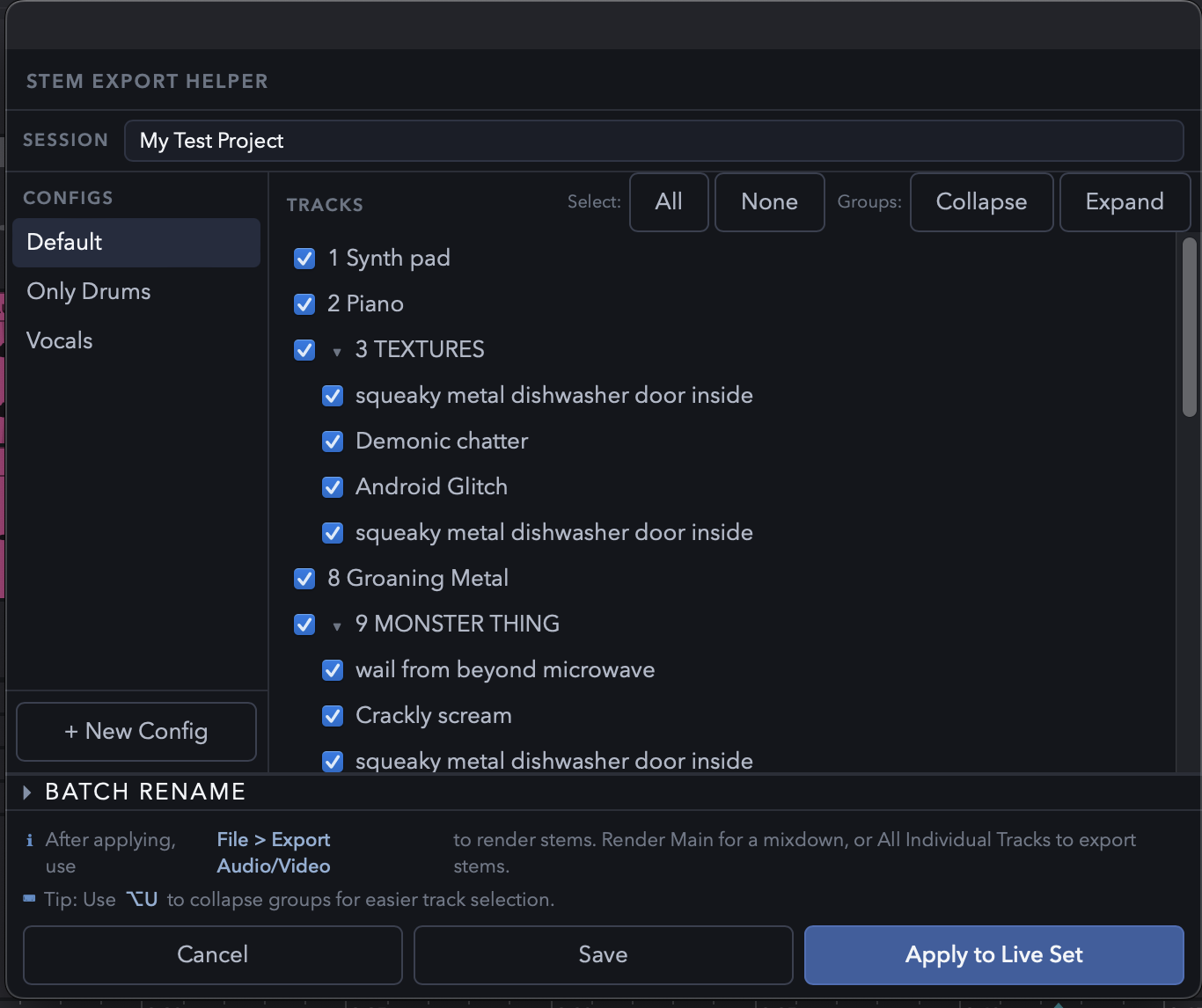
User Guide
Opening the Extension
Right-click any audio or MIDI track in the Arrangement View and select Stem Export Helper from the context menu.
Session Name
At the top of the dialog is a Session field. This ties your configs to a named project so they persist across restarts of Ableton.
- Type a new name to start fresh for a new project.
- Select an existing name from the dropdown to reload a previously saved set of configs.
- The session name is required — Save and Apply are disabled until you enter one.
- When you switch to a different Ableton project (different tracks), the session field automatically clears so you start fresh.
Configs
The left panel lists your saved configurations for the current session. Each config stores which tracks are checked (unmuted) and any track renames.
| Action | How |
|---|---|
| Switch config | Click a config in the list |
| Rename config | Double-click its name |
| New config | Click + New Config (copies current state) |
| Delete config | Hover a config and click × |
Tracks
The right panel shows all tracks in the current Live Set, grouped by their parent group track.
| Action | How |
|---|---|
| Mute/unmute a track | Check or uncheck it |
| Rename a track | Double-click its name and press Enter |
| Select all | Click All |
| Deselect all | Click None |
When you apply a config, checked tracks are unmuted and all others are muted. Track renames are written back into the Live Set.
Stale Tracks
If a saved config references a track name that no longer exists in the current project, a warning panel appears at the top of the track list.
For each missing track you can:
- Remap to… — select a current track to replace it. This updates the mapping across all configs in the session at once.
- Delete — remove the entry from this config.
Batch Rename
Click Batch Rename at the bottom to expand the rename panel. Operations apply to all checked tracks.
| Field | Effect |
|---|---|
| Find / Replace | Replace text in track names |
| Prefix | Add text before every name |
| Suffix | Add text after every name |
Regex mode
Check Regex to treat the Find field as a regular expression. The Replace field supports capture group references ($1, $2, …).
Common pattern shortcuts — click any pill to fill in the Find/Replace fields:
| Pattern | What it does |
|---|---|
| Remove numbers | Deletes all digit sequences |
| Remove leading numbers | Strips numbers at the start of a name |
| Remove trailing numbers | Strips numbers at the end of a name |
| Remove parentheses | Removes (…) groups |
| Trim spaces | Strips leading and trailing whitespace |
| Collapse spaces | Replaces multiple spaces with one |
Applying
| Button | Effect |
|---|---|
| Cancel | Close without changes |
| Save | Persist configs to disk without touching the Live Set |
| Apply to Live Set | Mute/unmute tracks, apply renames, and save configs |
After applying, use File › Export Audio/Video (⌘⇧R / Ctrl⇧R) to render your stems.
Rate this extension
One rating per account; you can change it any time.
Comments
No comments yet.